
How to turn bank statements into clean Excel — without typing them by hand
Bank statements are some of the messiest documents to digitize: every bank lays them out differently, tables run across pages, and a misread minus sign throws off the whole reconciliation. Here's how to extract them into clean Excel, CSV, or JSON.
- tutorial
- bank statements

Ask any bookkeeper what their Monday morning looks like and you’ll hear some version of the same ritual: open a stack of PDF bank statements, and start typing. Date, description, amount, balance. Row after row, statement after statement, client after client. For a practice handling a dozen accounts, that’s the better part of a day every month spent transcribing numbers a computer already read once when it generated the PDF.
The frustrating part isn’t the volume. It’s that the data was already structured when the bank produced it — and then flattened into a page layout that a human now has to reverse-engineer by hand.
This post walks through how to get that data back out: into clean Excel, CSV, or JSON, without manual entry. We’ll cover why bank statements are unusually hard to extract, the trade-offs between the common approaches, and a step-by-step walkthrough using Ztract — including the cases where it gets tricky and what to do about them.
Why bank statements are harder than they look
Invoices and receipts are messy, but bank statements are a different tier of difficulty. A few reasons:
- Every bank has its own layout. There’s no standard. Chase, HSBC, a local credit union, and a neobank each arrange columns, dates, and running balances differently. A template you build for one is useless for the next.
- Tables run across pages. A single month can span four or five pages, with the transaction table breaking mid-stream and resuming after a page header. Naive extraction either drops the continuation rows or duplicates the header as data.
- PDF vs. scan vs. photo. A statement downloaded from online banking is text-based and clean. The same statement scanned at a branch, or photographed on a phone, is an image — now you need OCR before you can extract anything, and OCR introduces its own errors.
- The little things that break reconciliation. A debit shown as
(1,250.00)in parentheses instead of-1250.00. A date written03/06that’s ambiguous between March 6 and June 3. A currency symbol glued to the number. Thousands separators. Each one is small, and each one quietly corrupts a spreadsheet if it’s read wrong.
Any approach that claims to “just extract bank statements” has to have an answer for all of these. Most of the manual frustration comes from the long tail of edge cases, not the happy path.
The common approaches, and where each one stops working
There’s no single right tool — it depends on your volume and how varied your statements are. Honestly, the trade-offs are:
Typing it by hand. Zero setup, total accuracy if you’re careful, and completely unscalable. Fine for one statement a month. A non-starter for a practice.
Excel / Google Sheets “import.” If your bank offers a CSV export, use it — that’s the cleanest path and you don’t need extraction at all. The problem is most of the documents people actually receive are PDFs, and pasting a PDF table into Excel scrambles columns the moment the layout isn’t perfectly grid-aligned.
Template-based parsers. You define, once, where each field sits on the page. Fast and cheap if every statement looks identical. But since every bank differs, you end up building and maintaining a template per bank — and re-building it the day a bank tweaks its layout. The setup cost eats the time savings unless your statements are highly uniform.
LLM-based extraction. Instead of marking positions, you describe the fields you want in plain language and the engine adapts to each layout. This handles the “every bank is different” problem directly, and it’s far more forgiving of scans and odd formatting. The trade-off is you want a tool that lets you verify the output, because you’re trusting a model to read the page rather than a fixed coordinate.
That last category is where Ztract sits, so let’s walk through it concretely.
Walkthrough: bank statement to spreadsheet in Ztract
Here’s the full flow, the same one you’d use for a single statement or a folder of fifty.
1. Create a project and define what you want
A project is just a container for related documents and the schema you’ll apply to them. For bank statements, you have three ways to define that schema:
-
Start from the ready-made bank-statement schema and adjust it. This is the fastest start — it already knows about transaction dates, descriptions, debit/credit amounts, and running balances.
-
Describe the fields in plain English. For example:
“For each statement, extract the account holder name, account number, statement period, opening balance, and closing balance. Then for each transaction, extract the date, description, amount (negative for debits), and running balance.”
Notice the parenthetical — “negative for debits”. That single instruction tells the engine how to normalize those
(1,250.00)parentheses into a clean-1250.00, which is exactly the kind of edge case that derails a template parser. -
Infer from a sample. Drop in one representative statement and let Ztract propose a schema from it. Useful when you’re not sure what fields a given bank includes until you’ve seen one.
The key advantage here is that the same schema works across banks. You’re describing the data you want, not the position it sits in, so a layout you’ve never seen before is handled the same way.
2. Upload the statements
Drag in your files — PDF, Word, Excel, scans, or phone photos, up to 500 MB per file. Text-based PDFs and image-based scans both work; the scans simply get OCR’d first. If you have a month’s statements as separate files, upload them together and the schema applies to all of them.
3. Review and correct — this is the part that matters
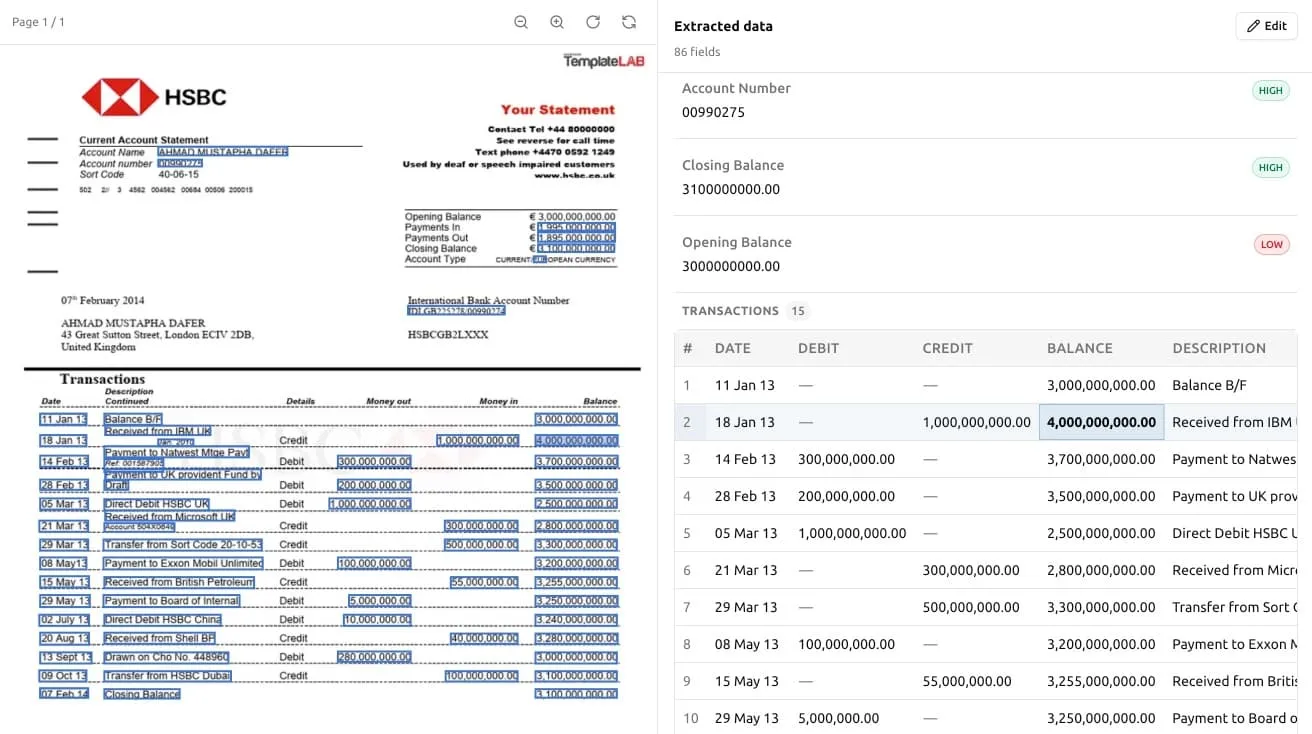
This is where bank statements earn their reputation, and it’s the step worth slowing down for. Ztract shows you each extracted value anchored to its exact position on the source page: click a number in the results and it highlights where on the statement it came from.
That side-by-side view is what makes verification fast. Instead of re-checking every figure against the original, you scan for the ones that look off — a transaction that landed on the wrong date, a running balance that doesn’t add up — and fix them in one click. And because we only charge for extraction, correcting a value costs you nothing. The editing work after the fact is free; only the pages you extract count against your pack.
For multi-page statements, this is also where you confirm the table stitched together correctly across page breaks — that the continuation rows came through and a repeated page header didn’t sneak in as a phantom transaction.
4. Export
Once it looks right, export to Excel, CSV, or JSON — a single statement or the whole project at once. From there it drops straight into your reconciliation workflow, your accounting software’s import, or wherever the numbers need to go next.
The cases that still need a human eye
We’d rather tell you where this gets hard than pretend it doesn’t. A few situations to watch:
- Multi-currency statements. If a statement mixes currencies, be explicit in your schema about capturing the currency per transaction, and double-check totals in the review step. Don’t assume a single currency for the whole document.
- Badly degraded scans. A faxed-then-rescanned statement with faint print is hard for anyone to read, including OCR. If the source is illegible to your eye, expect to verify more closely. A cleaner scan of the same document beats any amount of post-hoc correction.
- Merged or irregular cells. Some banks merge description cells across multiple lines, or split one transaction over two visual rows. The review step is exactly where you catch these, which is why we built it to be fast rather than treating extraction as fire-and-forget.
If a layout we should handle comes back wrong, we genuinely want to see it — email a sample (anonymized if you need) to support@ztract.com and we’ll dig in. The documents people send us are how the engine gets better.
A note on sensitive financial data
Bank statements are about as sensitive as documents get, so it’s worth being clear: we don’t train models on the documents you upload — not our own engine, and not the third-party LLMs we route through. The commercial APIs we use prohibit training on submitted data, and we rely on those commitments. When you delete a statement, it’s gone immediately from active storage and within 14 days from backups. The full picture is in our Privacy Policy and Data Processing Agreement.
Try it on your own statements
The fastest way to know whether this fits your workflow is to run it on a statement you’d otherwise be typing out by hand. New accounts get 30 free pages, no credit card — enough to extract a few real statements end to end and see how clean the output is.
If you process statements in volume and would be willing to share honest feedback on what worked and what didn’t, get in touch — we’re onboarding early users and shaping what we build next around the documents people actually struggle with. Bank statements are near the top of that list.
Checkout our use case page for more about bank statement extraction.