
Designing your schema
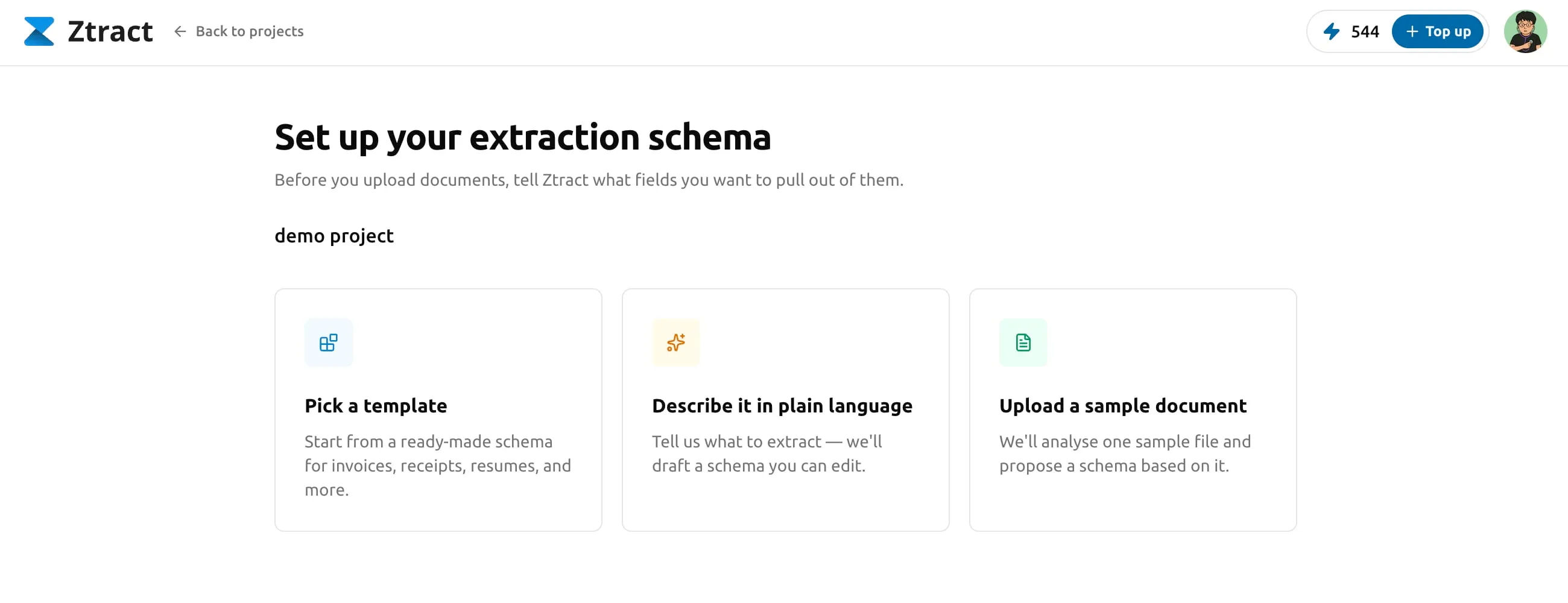
A schema is your declaration of what you want extracted from each document. Three ways to define one — pick whichever matches how you already think about the data.
Updated:
What is a schema?
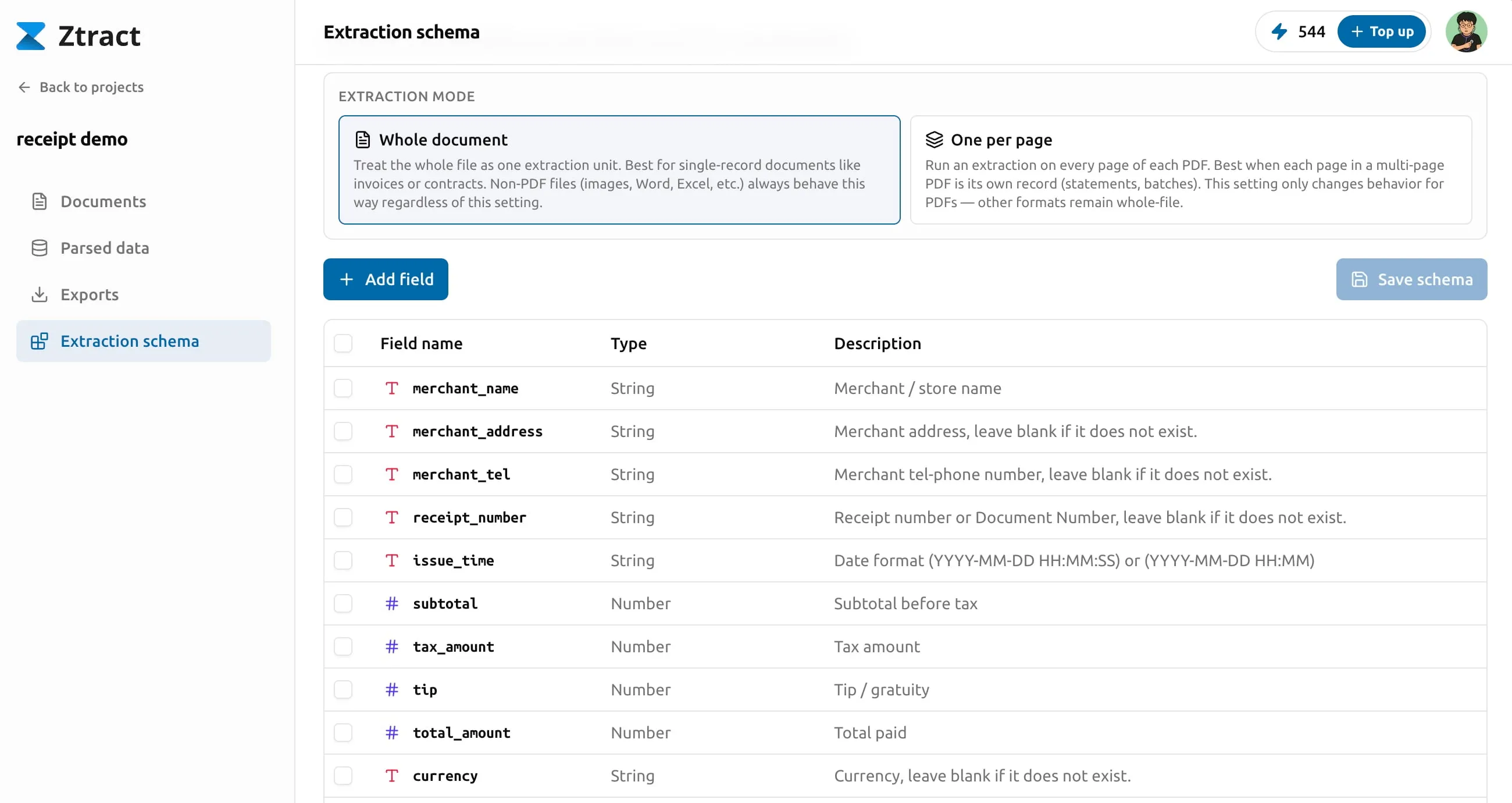
A schema in Ztract is the shape of the data you want back. It’s a list of fields with names, types, and optional structure (for example, “line items” is an array of objects, each with description, quantity, and unit price). The engine reads each uploaded document against the schema and returns the matching values, anchored to where they appeared on the source page.
Schemas live inside projects. One project = one schema = one consistent output shape across every document in that project. If you have multiple document types, you’d typically create one project per type.
Field types and structure
Each field has one of six types:
- string — free text. Names, addresses, free-form descriptions.
- number — decimal values. Amounts, percentages, dimensions.
- integer — whole numbers. Quantities, counts.
- enum — a string that must come from a fixed list you define. Use this for values that are categorically constrained — order status, payment method, currency code.
- object — a group of nested fields. Use when a thing naturally
has sub-properties (an
addresswithstreet/city/zip). - array — a repeating list. Items can be primitives (“skills” on a resume) or objects (“line items” on an invoice).
Object and array structures can nest, up to three levels deep. For most real-world documents two levels is plenty — an invoice’s line items, a contract’s signatories — and three is the ceiling for the rare cases where you genuinely need it.
Method 1 — Start from a template
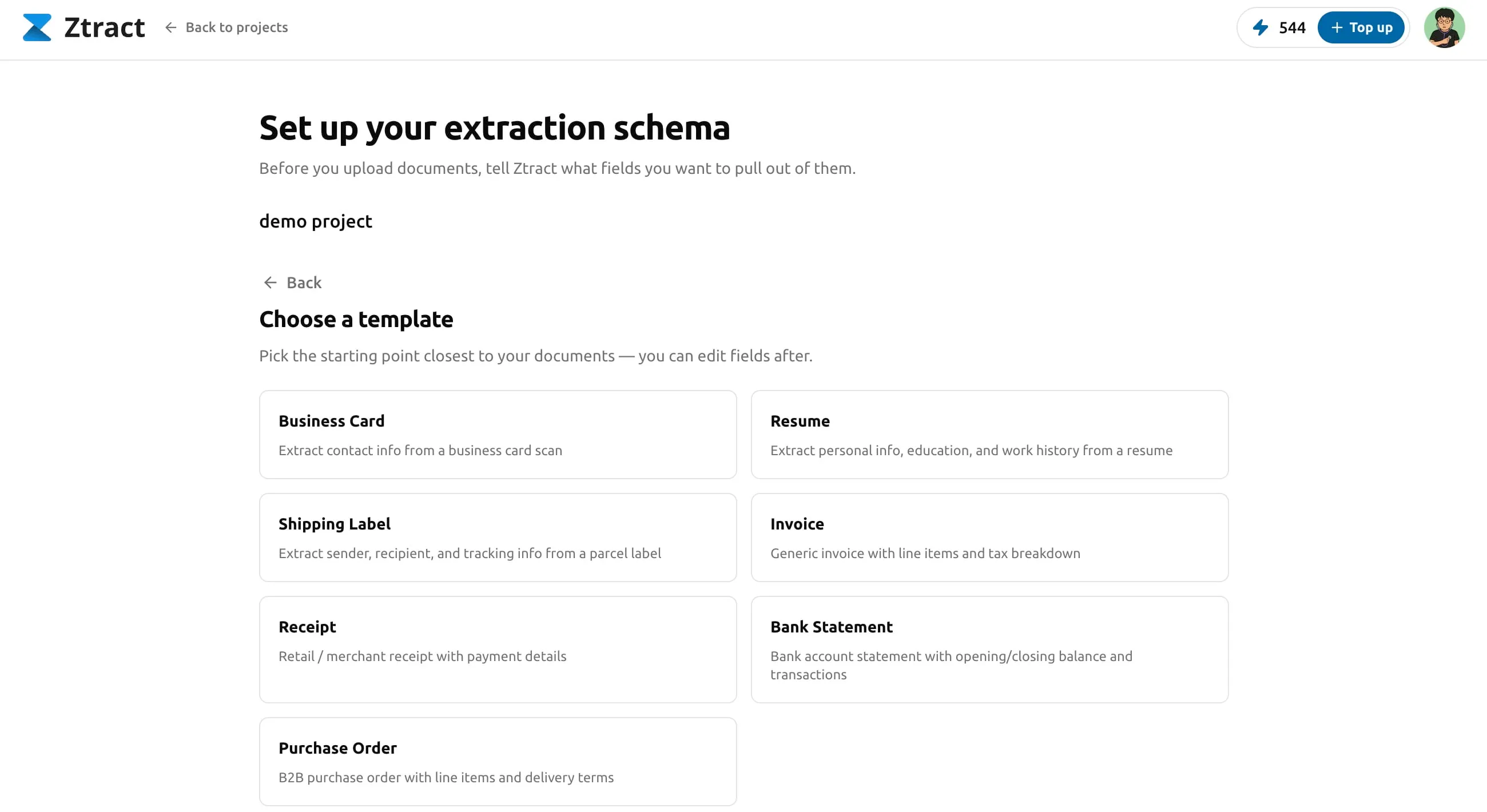
Ztract ships ready-made templates for common document types like invoices, receipts, contracts, and ID documents. Each template is a working schema with field names, types, and (where it applies) nested structures. They’re built from real-world examples, not from textbook ideals. The exact catalog is localized — when your dashboard language is set to English you see English-named templates; switch to Chinese, Japanese, etc. and the list updates accordingly.
When this works best. When your document type fits a well-defined category and your downstream tool expects the standard shape — for example, “invoices into NetSuite” or “expense receipts into Concur”. You get a working schema in two clicks.
How to customize. Open the template, rename any field to match your team’s terminology, delete fields you don’t need, and add any custom fields specific to your workflow. Save the schema and it’s ready for upload.
Method 2 — Describe in plain English
If a template doesn’t match, write what you want. Type a sentence or two describing the fields. Ztract drafts a complete schema from your description. You confirm or tweak before saving.
Example prompt. “For each purchase order, extract the PO number, vendor name and address, issue date, delivery date, line items with SKU, description, quantity, and unit price, and the order total. Also flag whether the PO is marked as a rush order.”
The engine produces something like:
po_number— stringvendor—{ name, address }issue_date— datedelivery_date— dateline_items— array of{ sku, description, quantity, unit_price }order_total— numberrush_order— boolean
When this works best. When you have a clear mental model of what you need but no canonical example to upload. Or when your document type is niche enough that no template would fit.
Method 3 — Infer from a sample document
Upload one example document; the engine reads it and proposes a schema with the field names, types, and nesting it found. You then adjust: remove fields you don’t care about, add ones the sample didn’t include, tighten types.
When this works best. When you don’t know what fields exist until you’ve seen one — common for medical reports (every lab prints its panels differently), custom-drafted contracts, and one-off vendor forms. It’s also useful when a field name on the document is unusual and you want the engine to suggest a normalized name.
Tweaking a schema after creation
You can edit a schema at any time — rename fields, add new ones, change types, restructure nesting. Edits don’t affect documents you’ve already processed; you’d need to re-run them under the new schema to get the updated shape. Re-runs are billed (see Billing, packs, and refunds), so most teams finalize their schema on a small batch first before processing volume.
Tips for tricky fields
- Dates. Whatever the document prints — DD/MM/YYYY, Jun 5 2026, “Q2 2026” — Ztract converts it to the date format you specify in your Schema. If no format is specified, the date is returned as printed.
- Amounts and currencies. Currency stays in its original form (€, $, ¥, ₩, etc.); we do not silently convert. Per-line tax rates stay attached to the row they belong to.
- Nested structures. If the document naturally has sub-objects (parties on a contract, payment terms inside a vendor agreement), use nesting in the schema. The output JSON will mirror the nesting; CSV / Excel will flatten with dotted paths.
- Arrays of plain strings. Fields like “skills” on a resume or “endorsements” on a passport come back as arrays of strings. The dashboard renders the array as a table in the side-by-side viewer — one row per item, linked back to its source region.
- Enum fields. Constrained-vocabulary fields (status, currency code, document class) work best as enum — you provide the allowed values once and the engine sticks to them rather than inventing variants like “Paid”, “paid”, “PAID”, or “Settled”.